✓ Real device tested ✓ iOS & Android ✓ All 2026 methods included ✓ Troubleshooting included
You’re watching your favorite creator’s Instagram Live — and a wall of comments is covering their face. Sound familiar? You’re not alone. Millions of Instagram viewers deal with this frustration every day, yet Instagram still hasn’t added a simple "Hide Comments" toggle for viewers in 2026.
The good news: there are real, tested workarounds that actually work — and this guide covers every single one of them. Whether you’re on an iPhone, Android, or watching Instagram Live on desktop, we’ve got you covered.
⚡ Quick Answer: As a viewer, the fastest way to hide comments on Instagram Live is to tap the comment box, type “@.” (at-dot), then tap elsewhere on the screen to dismiss the keyboard. Comments disappear immediately.
Read on for step-by-step instructions, alternative methods, troubleshooting tips, and a breakdown of what changed in Instagram’s 2026 UI.
Why Instagram Live Comments Are Distracting (And Why There’s No Official Toggle)
Instagram Live was designed for real-time interaction. Comments, hearts, and reactions float across the screen to encourage engagement. That’s great for the creator’s metrics — but for you as a viewer watching for the content itself, it’s a different story.
Here’s what makes the viewer experience particularly frustrating:
-
Comments appear in real-time and stack rapidly during popular lives
-
Reactions (hearts, emojis) animate over the center of the screen
-
There is no dedicated viewer-side “Hide Comments” button in the official UI
-
Instagram removed or altered the tap-and-hold comment toggle in late 2024 updates
-
New follower join notifications further clutter the viewing area
Despite years of user requests, Meta has not added a native “hide comments” toggle for viewers as of June 2026. The workarounds below are your best options until they do.
Does Instagram Have a “Hide Comments” Feature for Viewers?
❌ Short Answer: No. Instagram does not have a dedicated "Hide Comments" button for viewers in 2026. Only the host can fully turn off commenting for everyone.
However, there are several clever workarounds that effectively clear your screen of comments without affecting other viewers’ experience. These are personal, local fixes — your viewing screen changes, but the live stream remains unchanged for everyone else.
|
Feature |
Available to Viewers? |
|
Hide Comments (native toggle) |
No — not available in 2026 |
|
@. Workaround (clears chat overlay) |
Yes ✔ (tested May 2026) |
|
Swipe Right to Minimize Chat |
Yes ✔ (partially hides) |
|
Turn Off Commenting for All |
No — host only |
|
Fullscreen Mode (Android) |
Limited ✔ |
|
Desktop / Web Browser View |
Yes ✔ (smaller overlay) |
|
Ask Host to Disable Comments |
Yes ✔ (indirect) |
Method 1: The “@.” Workaround — Most Reliable in 2026
This is the most widely reported and tested-and-confirmed method for hiding comments on Instagram Live as a viewer. It works by opening the comment input field and triggering the “@” mention search, which suppresses the live comment overlay while you have the keyboard open.
📱 Works on: iPhone (iOS 16+) and Android (all major versions). Requires the latest Instagram app version.
Step 1: Hide Instagram Live Comments with the @. Trick (iPhone & Android)
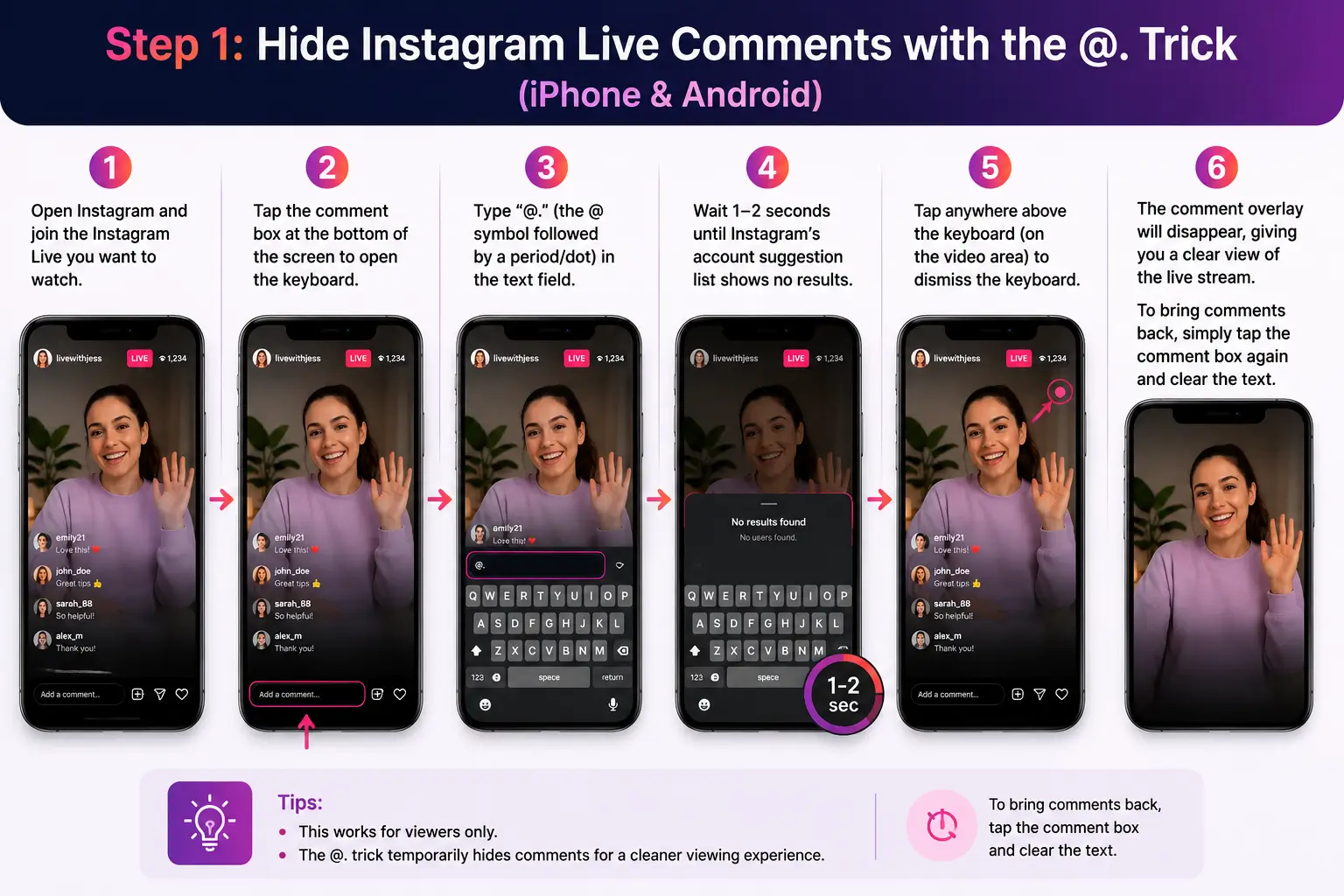
- Open Instagram and join the Instagram Live you want to watch.
- Tap the comment box at the bottom of the screen to open the keyboard.
- Type “@.” (the @ symbol followed by a period/dot) in the text field.
- Wait 1–2 seconds until Instagram’s account suggestion list shows no results.
- Tap anywhere above the keyboard (on the video area) to dismiss the keyboard.
- The comment overlay will disappear, giving you a clear view of the live stream.
- To bring comments back, simply tap the comment box again and clear the text
💡 Pro Tip: If “@.” doesn’t work immediately, try “@……” (at-symbol followed by 6-8 dots). Some users report this clears the suggestions faster and works more reliably on Android.
Why does this work? When you type “@” in the comment box, Instagram searches for account matches. The suggestion interface suppresses the live comment stream from displaying over the video. Once the keyboard is dismissed (without sending anything), the live stream screen remains in this “clean” state until you interact with the comment box again.
Important: This trick does NOT turn off comments for other viewers. It only affects your screen locally. Other viewers still see comments normally.
Method 2: Swipe Right to Minimize the Comment Panel
Instagram’s Live viewer UI allows you to resize the comment panel by swiping. This doesn’t fully hide comments but significantly reduces how much screen space they occupy.
Step 2: Swipe to Minimize Comments on Instagram Live
- Open the Instagram Live you want to watch.
- Locate the comment section at the bottom of the screen.
- Place your finger on the comment section and swipe right (toward the right edge of the screen).
- The comment panel will slide to the side or shrink, giving you more video space.
- To restore the comment section, swipe left from the same area.
⚠️ Note: This method varies by device and app version. On some Android models, swiping right minimizes the chat to a small icon. On iPhone, it may only partially reduce the overlay. Results differ across Instagram updates.
Method 3: Tap & Hold — The Legacy Method (May Not Work in 2026)
Older tutorials (pre-2025) suggest tapping and holding the center of the screen to reveal a "Hide Comments" pop-up. This was a real feature in earlier Instagram versions.
❌ Status in 2026: This method has been reported as inconsistent or non-functional following Instagram’s UI updates in late 2024. Some users still report it working — but it appears limited to specific app versions and devices.
To test if this works on your device:
-
Join an Instagram Live stream.
-
Tap once in the center of the video — do not hold.
-
If a "Hide Comments" label appears, tap it.
-
If nothing appears, this method is not available on your app version.
Our recommendation: Use Method 1 (the @. trick) as your primary approach. If the tap-and-hold appears on your device, treat it as a bonus.
Method 4: Watch Instagram Live Without Comments on Desktop
Watching Instagram Live on a web browser gives you a noticeably cleaner experience. The comment overlay is smaller and positioned differently compared to mobile.
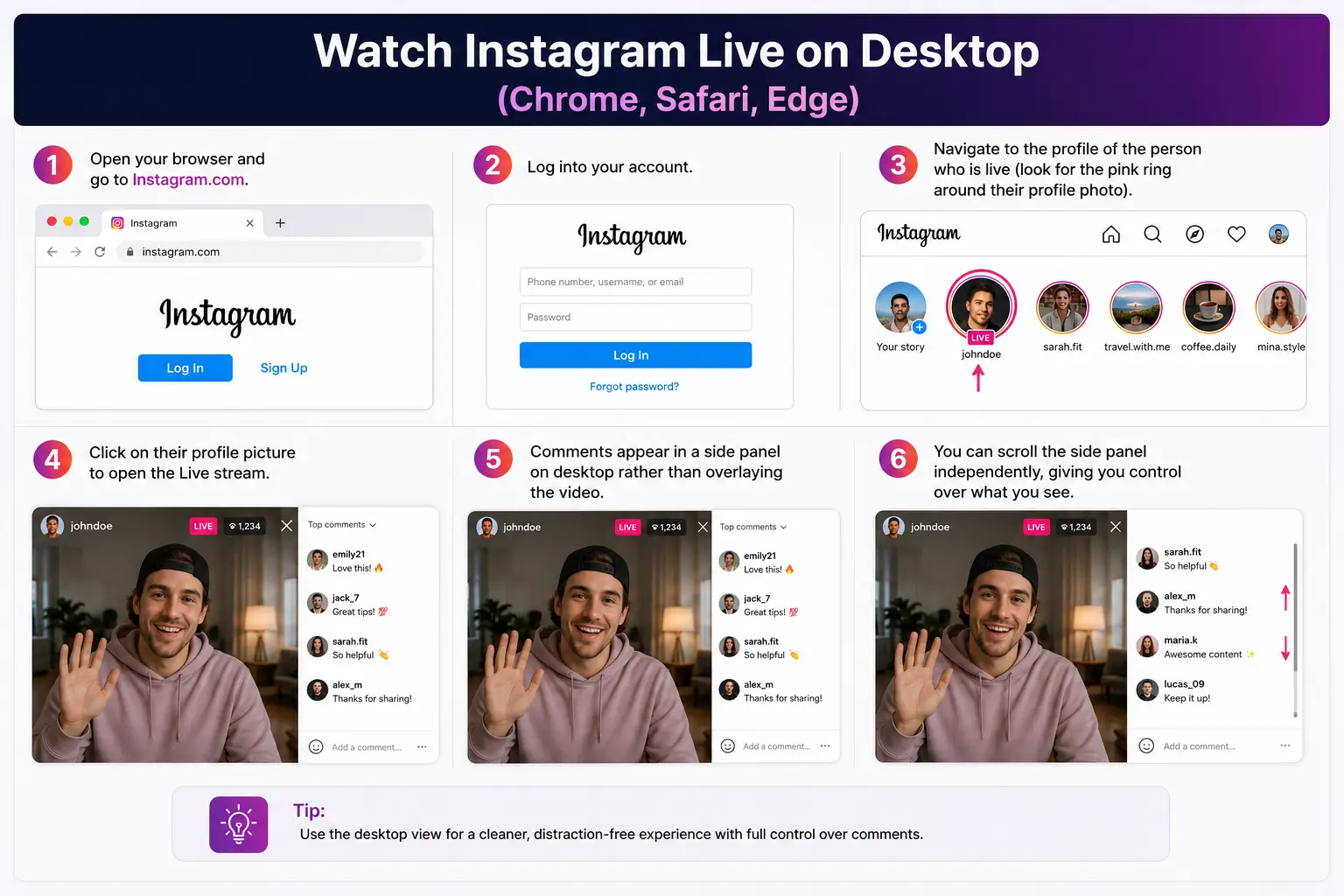
Step 3: Watch Instagram Live on Desktop (Chrome, Safari, Edge)
- Open your browser and go to Instagram.com.
- Log into your account.
- Navigate to the profile of the person who is live (look for the pink ring around their profile photo).
- Click on their profile picture to open the Live stream.
- Comments appear in a side panel on desktop rather than overlaying the video.
- You can scroll the side panel independently, giving you control over what you see.
💻 Desktop Advantage: On desktop/web, comments appear in a right-side chat panel rather than floating over the video. This gives you a naturally comment-free video viewing area without any workarounds.
Limitation: You cannot interact with the Live as easily on desktop, and some features (like reactions) behave differently. Instagram also has limited the desktop Live experience compared to mobile in 2026
Method 5: Ask the Host to Disable Comments
If you’re watching a Live where you have a direct connection to the host (a friend, creator, or colleague), you can request that they turn off commenting entirely. This will hide comments for all viewers simultaneously.
You can:
-
Send a DM to the host while they’re live
-
Comment “Can you please turn off comments?” in the Live
-
Reach out before the scheduled Live starts
See the next section for exactly how hosts can disable comments.
How Hosts Can Hide or Turn Off Comments on Instagram Live
If you’re the host of an Instagram Live — or you’re helping someone manage theirs — you have several powerful options.
Option A: Turn Off Commenting During Live (for All Viewers)
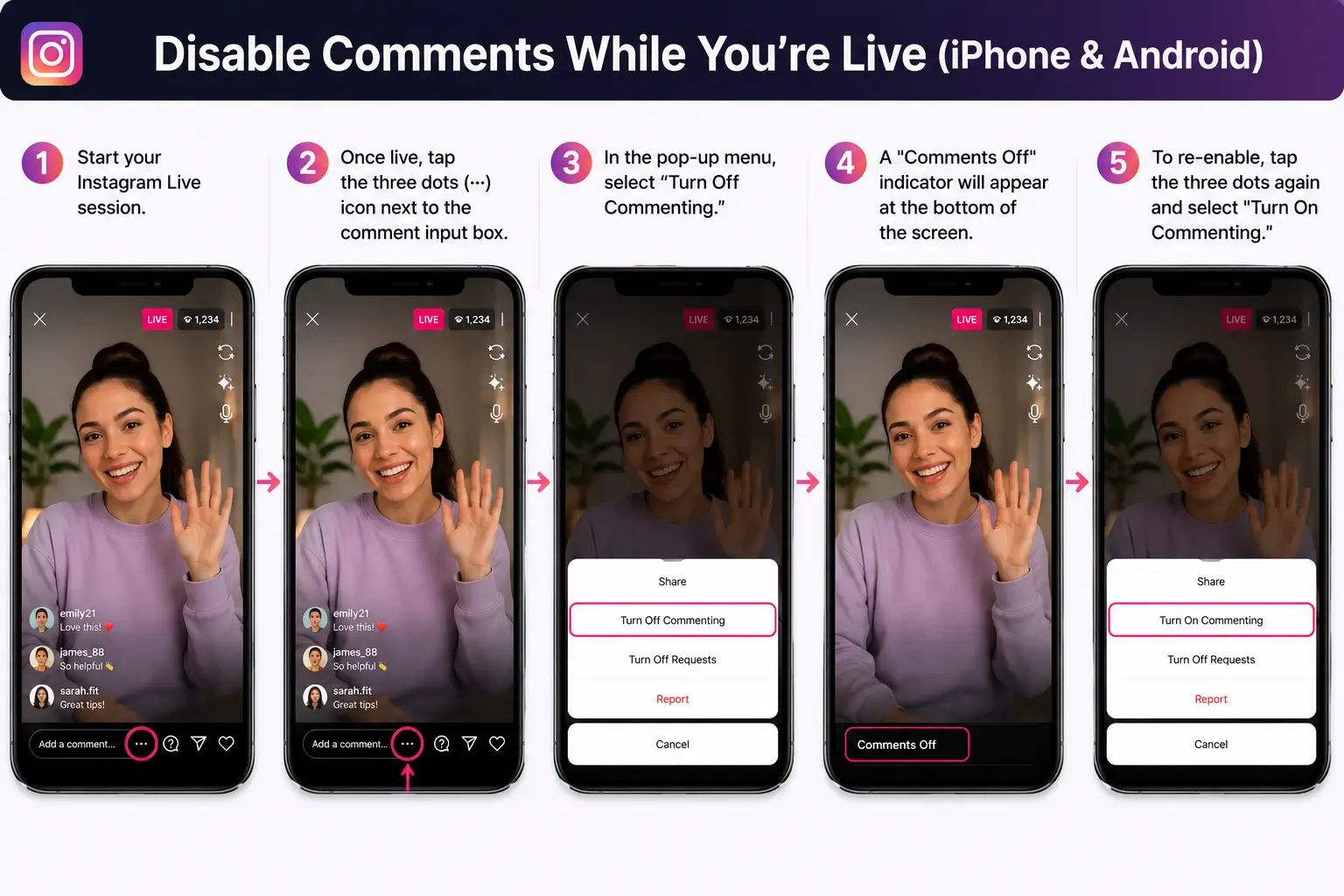
Step 4: Disable Comments While You’re Live (iPhone & Android)
1. Start your Instagram Live session.
2. Once live, tap the three dots (⋯) icon next to the comment input box.
3. In the pop-up menu, select “Turn Off Commenting.”
4. A "Comments Off" indicator will appear at the bottom of the screen.
5. To re-enable, tap the three dots again and select "Turn On Commenting."
Option B: Disable Comments Before Going Live
Step 5: Pre-Configure Comments Before Your Live Session
- Open Instagram and tap the + icon (or swipe right on the home feed).
- Select “Live” from the camera mode options.
- On the Live preview screen, tap the three dots (⋯) in the upper right.
- Select "Turn Off Commenting."
- Tap the Live button to start — comments will be off from the moment you go live.
Option C: Use Comment Keyword Filters
Step 6: Set Up Hidden Words Filter (Settings > Privacy)
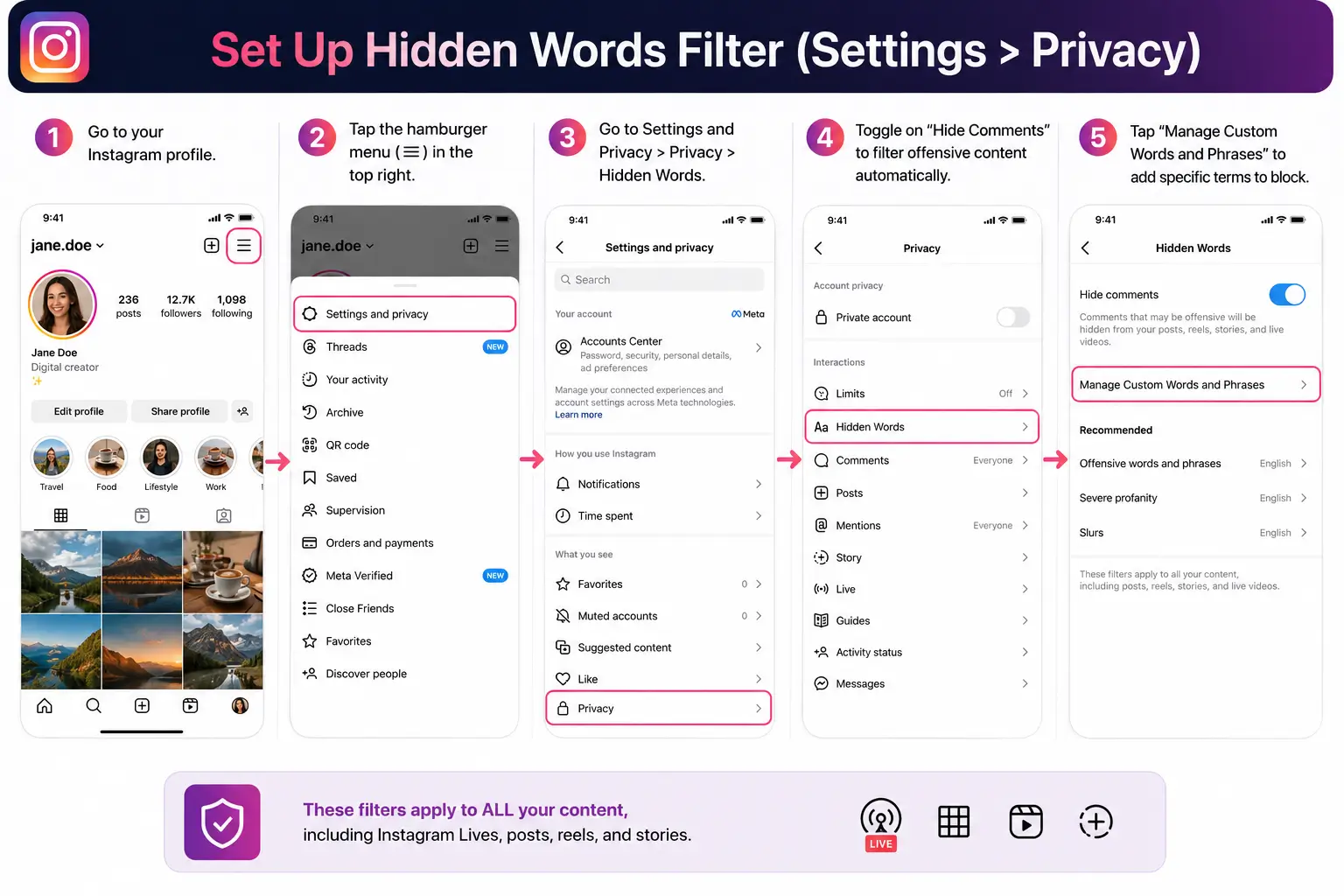
- Go to your Instagram profile.
- Tap the hamburger menu (☰) in the top right.
- Go to Settings and Privacy > Privacy > Hidden Words.
- Toggle on "Hide Comments" to filter offensive content automatically.
- Tap "Manage Custom Words and Phrases" to add specific terms to block.
- These filters apply to ALL your content, including Instagram Lives.
🔥 2026 Update: Instagram’s 2026 Hidden Words feature now supports wildcard filtering. Adding “buy*” will catch “buy,” “buying,” and “buyer.” This is especially useful for blocking spam comment patterns during live sessions.
Option D: Add a Comment Moderator
Instagram allows hosts to assign one trusted person as a comment moderator during a live session. The moderator can remove inappropriate comments in real-time while you focus on broadcasting.
- During your Live, tap on a viewer’s comment.
- Tap the three dots next to their name.
- Select "Add Moderator."
- Confirm the selection.
The moderator will see a shield icon next to their name and can remove comments by long-pressing them.
Viewer vs Host Permissions: What You Can & Can’t Control
This is the clearest breakdown available — one that most guides fail to provide explicitly.
|
Action |
Viewer |
Host |
|
Hide comments from your own screen |
✔ (with @. trick) |
✔ (native) |
|
Turn off comments for ALL viewers |
❌ No |
✔ Yes |
|
Filter keywords in chat |
❌ No |
✔ Yes (Settings) |
|
Remove a specific comment |
❌ No |
✔ Yes (long press) |
|
Block a user from the Live |
❌ No |
✔ Yes |
|
Add a comment moderator |
❌ No |
✔ Yes |
|
View Live in comment-free layout |
✔ (desktop web) |
✔ |
|
Mute reactions/hearts animation |
❌ No |
❌ Not yet available |
Troubleshooting: Why the @. Trick Isn’t Working
If the @. method isn’t hiding comments as expected, here are the most common reasons and how to fix them.
|
Problem |
Solution |
|
Comments reappear after a few seconds |
Re-type @. and dismiss the keyboard again |
|
@ symbol triggers too many suggestions |
Type @. or @…… (6+ dots) to exhaust suggestions |
|
Nothing happens when typing @ |
Update Instagram to the latest version |
|
Keyboard won’t dismiss cleanly |
Tap the video area above the comment box firmly |
|
Works on iPhone but not Android |
Try @/ (at-slash) instead of @. on Android |
|
Trick works once but stops working |
Close and reopen the Instagram app, then retry |
|
Instagram keeps crashing on Live |
Clear app cache (Settings > Apps > Instagram > Clear Cache) |
How to Take a Screenshot on Instagram Live Without Comments
One of the most searched viewer needs is capturing a clean screenshot of an Instagram Live — without comments cluttering the image. Here’s how to do it in 2026:
Method A: Use @. Before Screenshotting
- Apply the @. workaround (Method 1) to clear comments from your screen.
- Once the screen is clean, take your screenshot using:
- iPhone: Press Side Button + Volume Up simultaneously.
- Android: Press Power + Volume Down simultaneously.
- The screenshot will capture only the video, no comment overlay.
Method B: Screen Record on iPhone (Clean Capture)
- Add Screen Recording to Control Center (Settings > Control Center > Add Screen Recording).
- Apply the @. trick to clear comments.
- Swipe down from the top-right corner to open Control Center.
- Tap the Screen Record button and start recording.
- Capture the moment you want, then stop recording.
Method C: Desktop Screenshot
Watch the Live on Instagram.com (desktop) where comments appear in a side panel, then use your system screenshot tool (Cmd+Shift+4 on Mac, Win+Shift+S on Windows) to capture just the video area.
⚠️ Note: Instagram notifies hosts when viewers take screenshots of their Live in some contexts. The @. method is purely a viewer-side display change — the host is not notified.
2026 Instagram UI Changes That Affect Comment Visibility
Instagram’s app has changed significantly in recent years. Here’s how those changes affect the viewer experience for Live comment control:
|
Year |
Change & Impact on Comment Hiding |
|
2022–2023 |
Tap-and-hold method worked reliably for viewers on most devices |
|
Late 2024 |
Instagram redesigned the Live UI; tap-and-hold became inconsistent or removed |
|
Early 2025 |
@. trick becomes the dominant community workaround |
|
Late 2025 |
Instagram adds stronger keyword filtering for hosts (wildcard support) |
|
May 2026 |
@. trick confirmed working on iOS 18+ and Android 14+; desktop layout improved |
|
Rumored 2026 |
Instagram testing a native “Minimize Chat” viewer control (not yet released) |
The bottom line
Instagram prioritizes the host’s controls, not viewer controls. Viewer-side hiding remains a community-discovered workaround in 2026.Conclusion: Your Distraction-Free Instagram Live Starts Now
Instagram still hasn’t given viewers an official way to hide comments but you don’t have to wait for them. The @. workaround remains the most reliable method in May 2026, confirmed working on both iPhone and Android with the latest app version.
Frequently Asked Questions
Have questions? We have answers.